First LuCI login: address, password and Chinese UI
Outcome
Section titled “Outcome”- Find the OpenWrt LAN management address, not the WAN port.
- Enter LuCI for the first time and set a root password you control.
- Install and switch to the Simplified Chinese UI.
- When LuCI is unreachable, recover through LAN/console instead of blindly resetting the device.
Applicable environment and defaults
Section titled “Applicable environment and defaults”- OpenWrt 25.12.6 official image with
apk; the default LAN is usually192.168.1.1/24. - A fresh official image usually has no root password set; LuCI asks you to set one. SSH and LuCI share that root password.
- Vendor/community firmware (ImmortalWrt, iStoreOS, vendor builds) may use a completely different address and password; check the label/manual first.
- This page is E1: defaults, package name and recovery are based on official documentation; verify your device.
Connect and find the management address
Section titled “Connect and find the management address”Connect the computer to a port labeled LAN; the WAN port usually does not serve the management UI. Use DHCP and check the default gateway:
Linux:
ip routeWindows:
ipconfigmacOS:
netstat -rnIf DHCP gives no address, temporarily set a static 192.168.1.2/24 with gateway 192.168.1.1 just for login.
ExpectedThe client gets a 192.168.1.x lease and the gateway is OpenWrt.
Open:
http://192.168.1.1/LuCI defaults to HTTP port 80, not HTTPS. If the browser forces HTTPS and fails, type http:// explicitly. Use the real gateway address; it is not always 192.168.1.1.
ExpectedThe LuCI login or first-run page appears.
Set the first password
Section titled “Set the first password”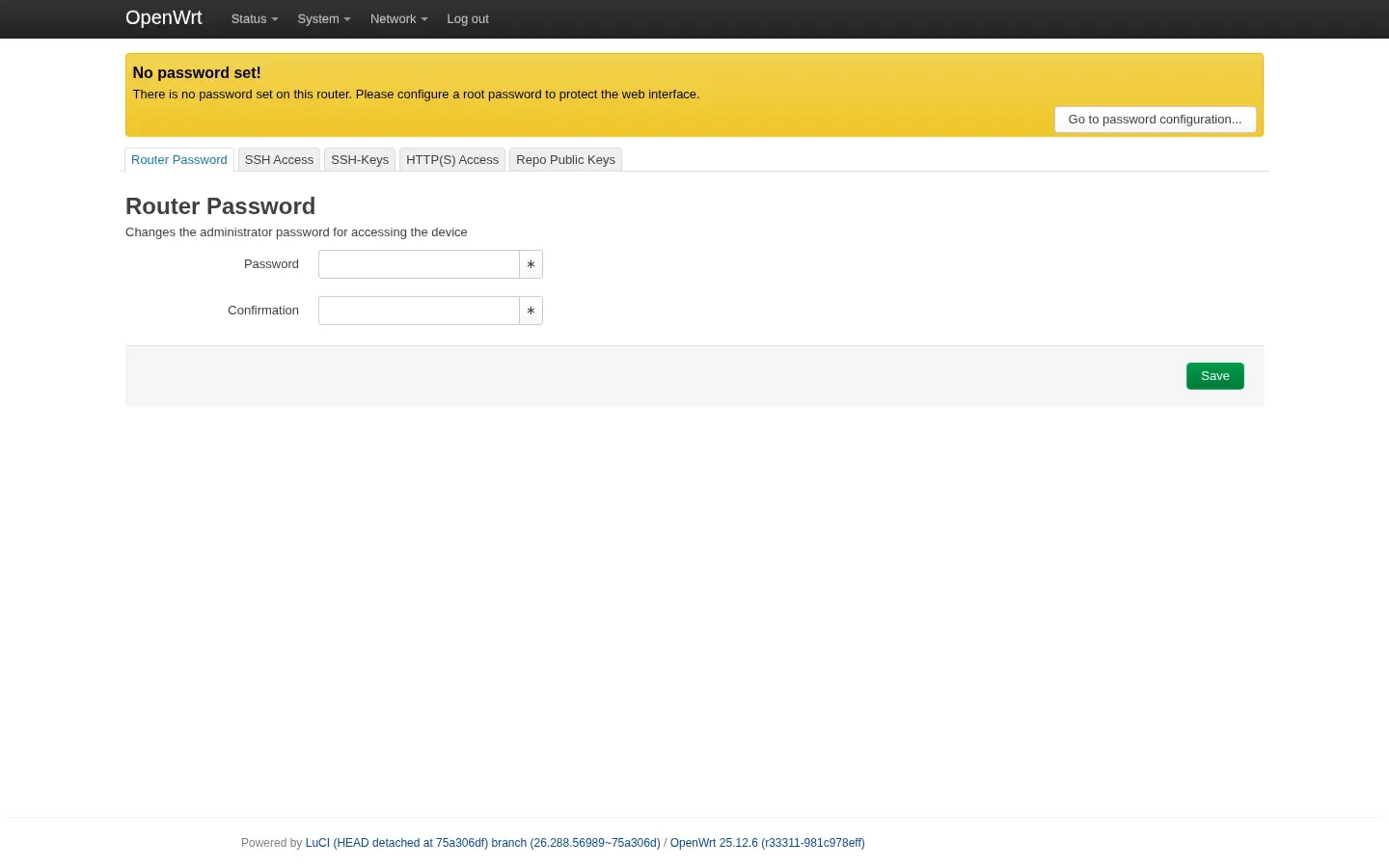
A fresh official image usually prompts for a password on first login. If it does not, open System → Administration. You can also use SSH first:
passwdUse a unique, long password; do not use admin, password, the model name, or a birthday. LuCI and SSH share the root password.
ExpectedYou can log in to LuCI and SSH with the same password.
Log out of LuCI and log in again; then confirm SSH accepts the same password. Store the address and password in a password manager, not in an article or repository.
ExpectedYou can log out and log back in with the new password.
Switch to Chinese
Section titled “Switch to Chinese”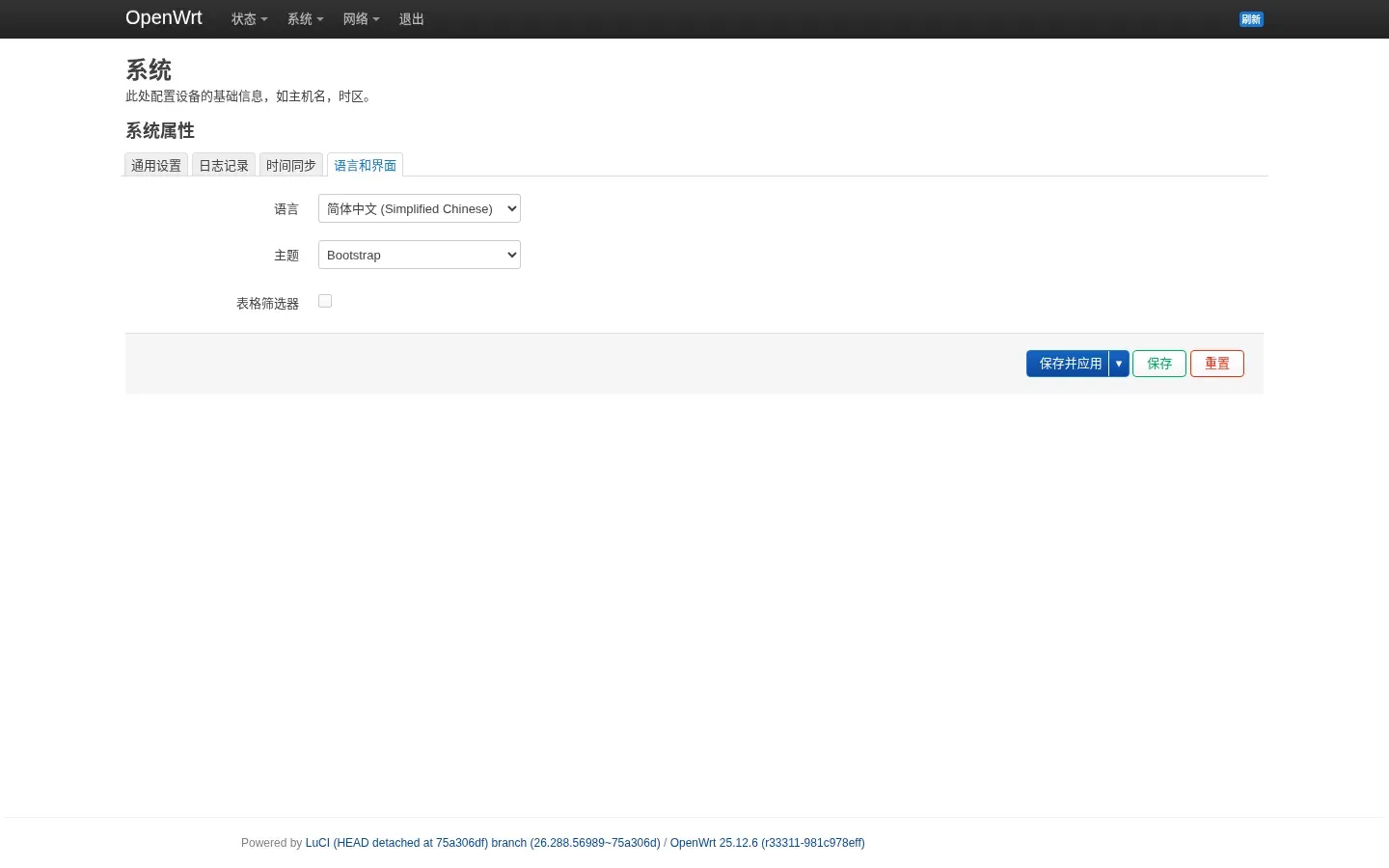
Open System → System → Language and Style and inspect the Language list. LuCI only lists installed language packs.
ExpectedSimplified Chinese is listed, or you know it must be installed.
OpenWrt 25.12 (apk):
apk updateapk add luci-i18n-base-zh-cnOpenWrt 24.10 (opkg):
opkg updateopkg install luci-i18n-base-zh-cnThe package is luci-i18n-base-zh-cn; refresh the browser, return to System → System → Language and Style, select 简体中文, save and apply.
ExpectedAfter refresh, Simplified Chinese is selectable.
Log out and back in. If it reverts to English, check whether the language setting was saved and whether another tab is caching the old UI.
ExpectedThe UI is still Chinese after a new login.
When LuCI is unreachable
Section titled “When LuCI is unreachable”Cannot open 192.168.1.1
Section titled “Cannot open 192.168.1.1”- Confirm you are on a LAN port, not WAN.
- Confirm the client IP and gateway are in the same subnet.
- Check
ping 192.168.1.1. - The device may use another LAN address, especially vendor firmware or a changed LAN.
- The browser may force HTTPS; use
http://or a private window.
Password does not work
Section titled “Password does not work”- A fresh official image usually has no default password; it asks you to set one.
- Vendor firmware may have a label password; do not guess repeatedly.
- If forgotten, recover through LAN plus console/SSH. Without a console, use the device’s failsafe procedure; do not factory-reset first.
- A factory reset erases configuration; confirm you have no important config/backup.
Chinese is not listed
Section titled “Chinese is not listed”- Check the package:
apk info -e luci-i18n-base-zh-cn(oropkg list-installedon 24.10). - The language pack must match the LuCI version.
- Refresh the page, or restart the relevant web services; do not restart the whole network.
SSH still fails after setting the password
Section titled “SSH still fails after setting the password”- SSH is port 22 with root login.
- Confirm the LAN address was not changed.
- Check System → Administration for SSH access.
- Use
logreadfor dropbear errors; do not hammer the login.
E2 status and sources
Section titled “E2 status and sources”- Core flow is E2 on the official OpenWrt 25.12.6 x86_64 image: first login, password setup,
luci-i18n-base-zh-cninstall, Chinese UI, SSH login. - Vendor/community firmware may differ; failsafe, factory reset and vendor restrictions remain E1. Do not generalize the official defaults.
- Screenshots are from temporary VM 200; timing/network values depend on your environment. Recipe:
tests/recipes/luci-first-login.md.
Sources
Independent OpenWrt notes. Every page states the firmware, device, package manager and way back.
Icons: Solar by 480 Design, CC BY 4.0